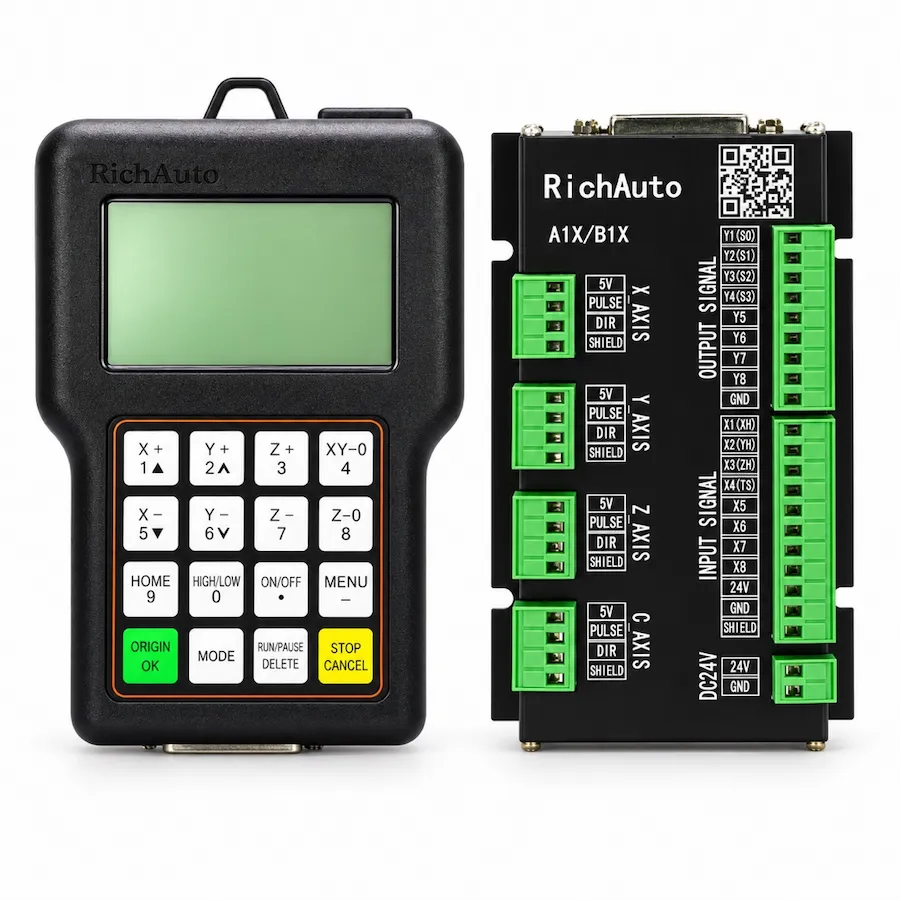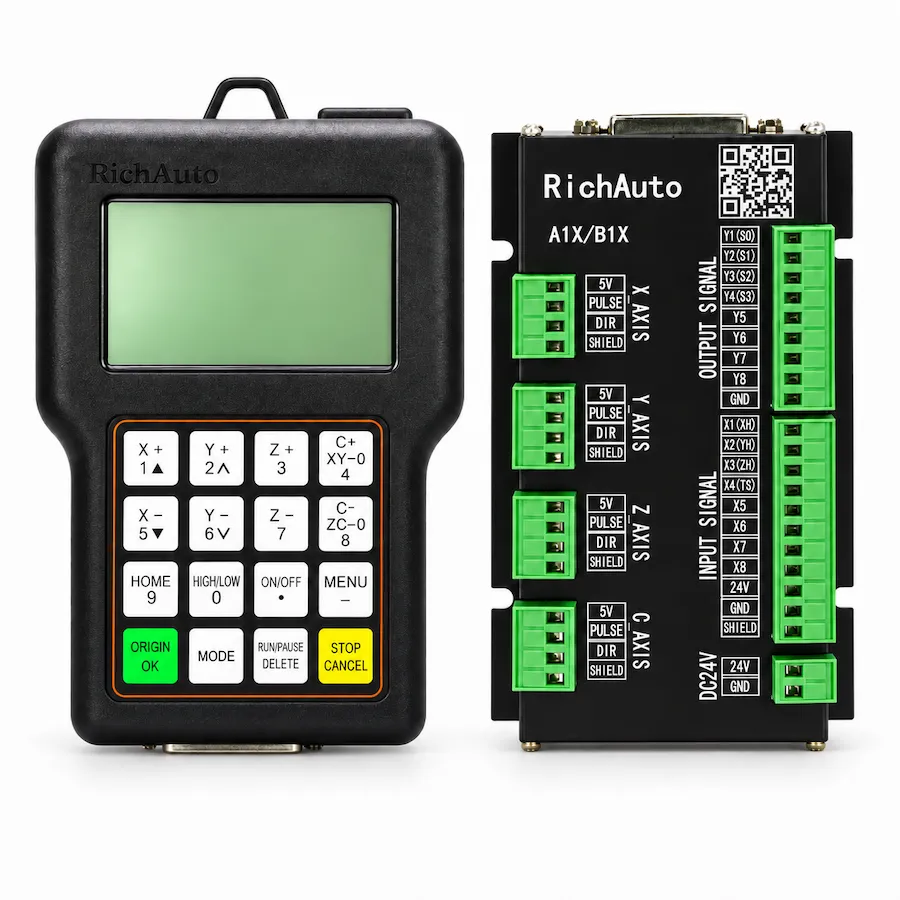
Searches for a RichAuto A11 update file usually cover three different things: the controller firmware package, the PC transfer utility used to move files and programs, and the parameter file that preserves a machine setup. Treating them as one item is how a routine update turns into an unplanned repair. This guide sets out the checks that make an update predictable.
The sequence below is deliberately conservative. A controller that is working is more valuable than a controller running an unverified package, and most update failures come from a package that did not match the label before the transfer started.
Three Files, Three Purposes
A firmware package changes how the controller behaves. A transfer utility runs on a PC and is not loaded into the controller. A parameter file records machine-specific values such as axis settings, spindle behaviour and homing positions. Each has a different matching rule, and each should be recorded separately.
Scroll horizontally to read all columns.
| Item | What it changes | Match it to | Keep a copy |
|---|---|---|---|
| Firmware package | Controller behaviour and menus | Controller range, board revision and current version | Yes, with the version noted |
| PC transfer utility | How files are moved from a computer | Operating system and connection type | Yes, with the version noted |
| Parameter record | Axis, spindle and homing values | The individual machine | Yes, before any change |
The distinction matters because a request for “the latest file” is unanswerable without the controller range and the installed board. The same range can carry more than one board revision, and the package for one revision is not a safe substitute for the other.
Identify the Unit Before Touching the File
Record the following before downloading or transferring anything. The list is short, and it prevents most of the problems that appear later.
- Controller designation and the marking on the label, including any revision or batch detail.
- Interface-board marking inside the cabinet, with a photograph of the terminal arrangement.
- Current firmware version, as shown by the controller or noted on the package supplied with the machine.
- Machine application and axis configuration, including any rotary or multi-head arrangement.
- Whether the machine is in production, so the update can be scheduled rather than rushed.
A photograph of the label and the board is more useful than a transcribed model name, because it preserves the details that get lost in a message. Send both when asking for a package.
Prepare a Way Back
An update is a change to a working system, so prepare the return path first.
- Record every parameter that was adjusted for the machine, including axis calibration, spindle settings and homing positions.
- Keep the current firmware version noted next to the package you are about to load.
- Confirm the power supply is stable and that the machine will not be interrupted during the transfer.
- Keep the previous package, if you have it, in the same place as the new one, clearly labelled.
The written record is what makes a rollback practical. If the machine behaves differently after an update, the fastest comparison is between the recorded values and the values now shown by the controller.
Transfer With a Stable Supply
The exact steps depend on the controller and the media it accepts, so follow the sequence supplied with the package rather than a generic routine copied from another model. Three conditions apply to every update:
- Stable power. An interrupted write is the most damaging failure mode. Do not update during an unstable supply or at the end of a working day when nobody can verify the result.
- Correct media. Use the media type and preparation the package expects. A drive that the controller reads for job files is not automatically suitable for a firmware transfer.
- One change at a time. Load the package, verify the result, then return to the machine settings. Do not combine a firmware change with wiring changes or parameter experiments.
After the transfer, confirm the version shown by the controller before running a job. A completed transfer screen is not proof that the new version is active.
When the Update Does Not Complete
Stop at the first sign that the controller is not behaving as expected. Continuing with a second package removes the evidence needed to identify what went wrong.
Scroll horizontally to read all columns.
| Symptom | First check | Next action |
|---|---|---|
| Version unchanged | Package name, media, transfer steps | Re-check the package against the label before repeating |
| Controller does not start | Power input and display behaviour | Stop, record the label and board, request matched support |
| Display stays dark | Supply, connection, previous state | Use the blank-screen checks before assuming a failed controller |
| Axis or spindle behaves differently | Parameters against the written record | Restore the recorded values before changing hardware |
| Package rejected | Model and board revision | Request the package for the installed revision |
The blank-screen path deserves its own check because a dark display after an update can come from the supply or the connection rather than from the package. The A11 blank-screen guide separates those causes before any replacement decision.
What a Version Record Should Contain
A version record is only useful if it can be read by someone who was not present when it was written. Include the controller designation, the board marking, the installed version, the date of the change and the reason for it. Add the package name exactly as supplied, because similar names appear across revisions.
Keep the record with the machine rather than with the person who performed the update. When the machine changes hands or a new operator takes over, the record is the difference between a ten-minute answer and a day of investigation.
Update, Reset or Replace
Three different actions are often described as “fixing the controller”. An update changes the installed version. A reset returns settings to a known state without changing the version. A replacement changes the hardware.
Choose deliberately. If the fault appeared after a parameter change, a reset with the recorded values in hand is the smaller action. If the controller does not start at all, neither an update nor a reset is the first step; the supply and the display behaviour come first. Replacement belongs at the end of the sequence, after the evidence points at the controller, and the parameter record belongs before it.
Keep Version Discipline
Record the version in the machine file, on the controller’s documentation and in the parameter backup. When a machine is serviced months later, that record answers the first question a support conversation raises: which controller and which version is installed.
Two habits make the record reliable. Note the date and the reason for each change, and keep the previous package alongside the new one. The manuals and downloads guide explains how the documents, firmware and wiring references are organised across the range, while the download index lists what is available for each model.
If the controller will not start and the machine is down, do not treat the update as the only possible cause. The reset guide covers the safe checks before a reset, and the controller not working guide provides a triage path across symptoms.