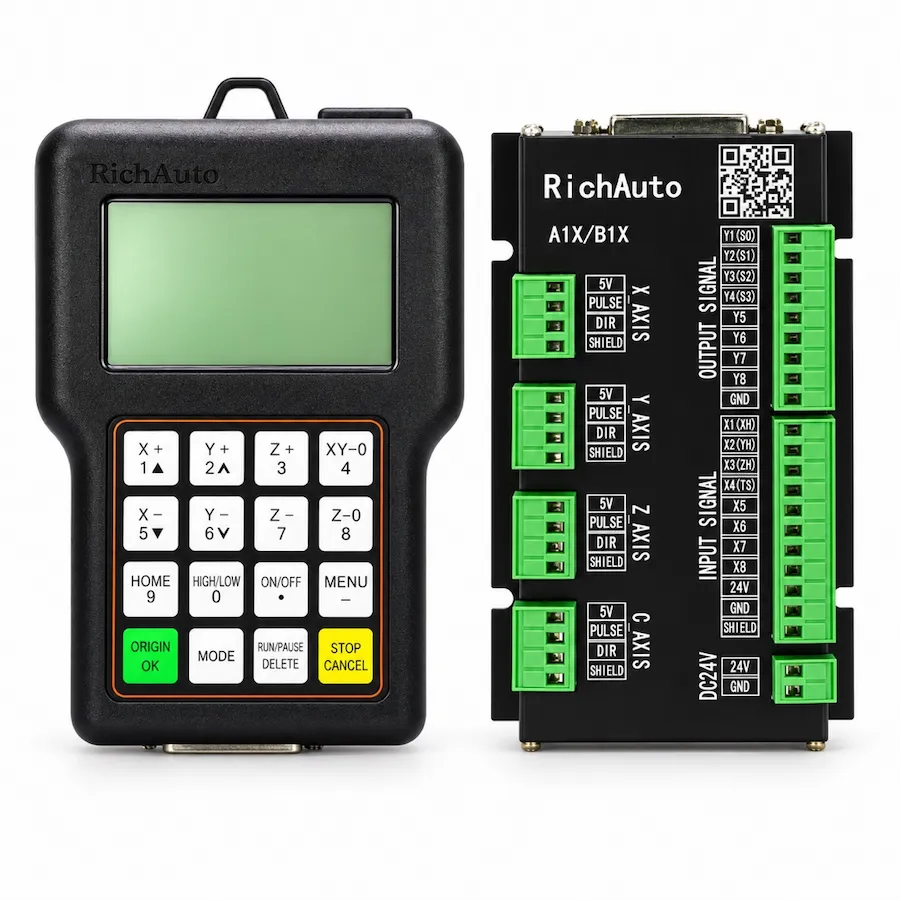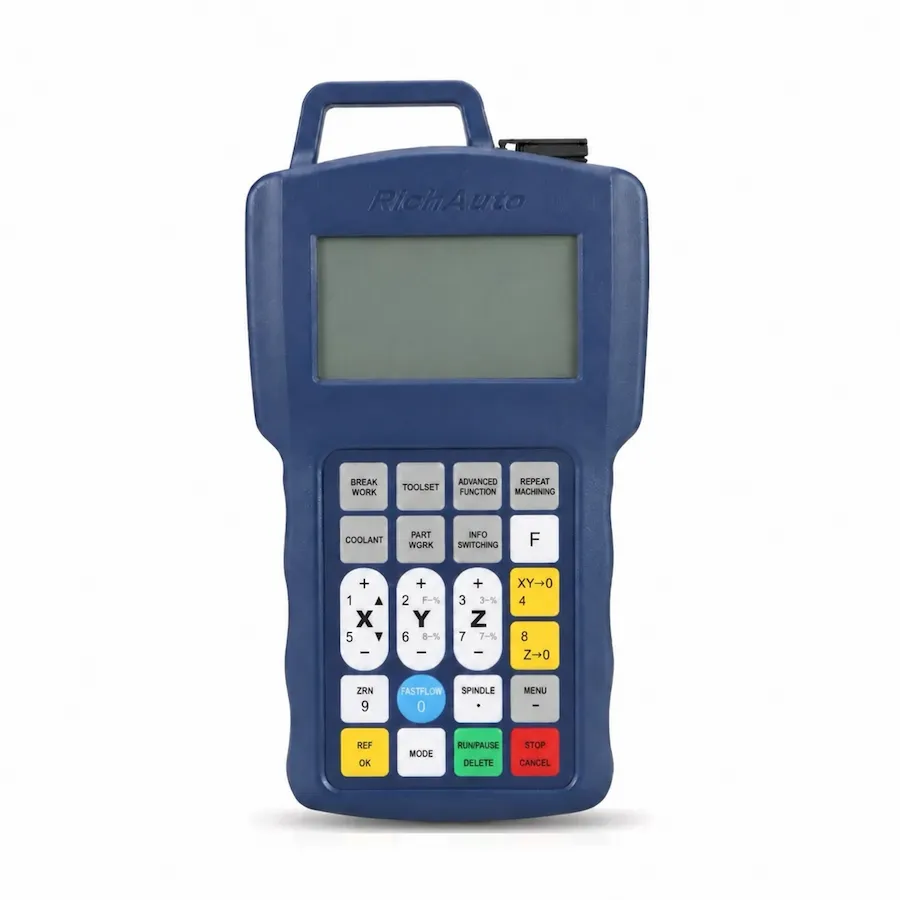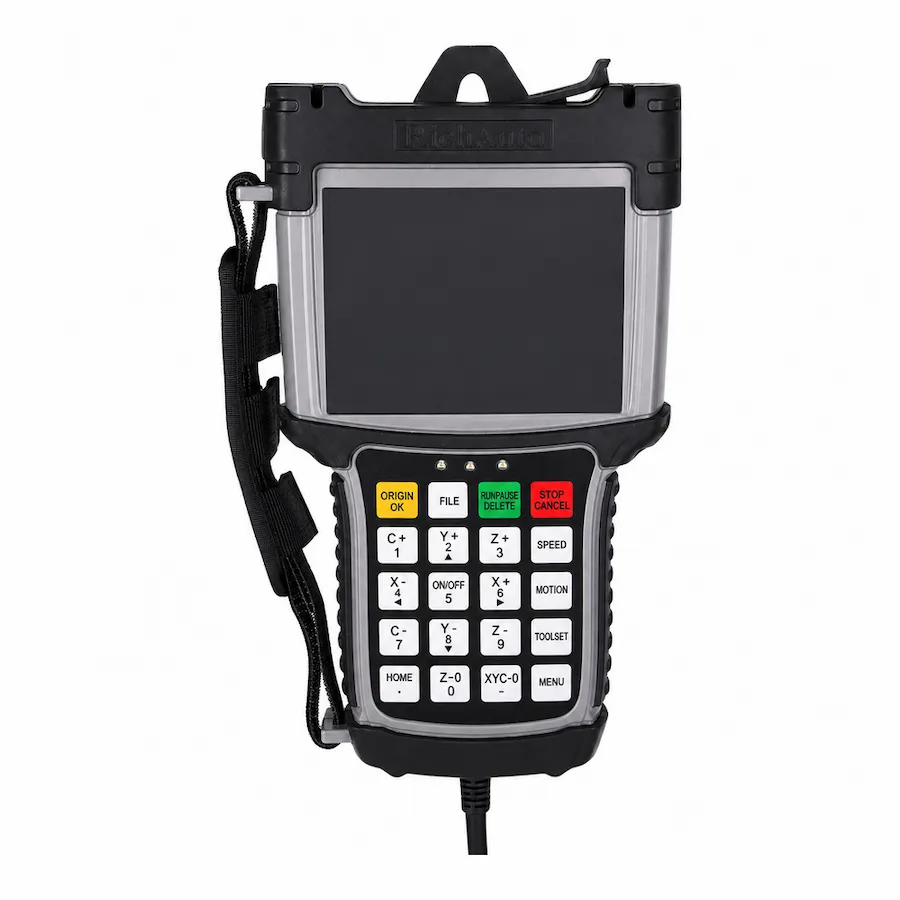
If a RichAuto DSP controller does not read a USB job, first identify where reading stops. A drive that never appears, a missing file, a loading error and a machining-program error are different symptoms. Separating them prevents an NC output problem from being mistaken for a damaged USB port, or a media problem from prompting unnecessary changes to machine parameters.
This guide provides a diagnostic order for USB file workflows on controllers such as A11, B11 and B51. Storage requirements and menu wording depend on the installed version. Use the matching operating instructions for exact media preparation; do not assume a capacity, file system or accepted extension from another RichAuto machine.
Start with These Four Symptoms
Scroll horizontally to read all columns.
| What you see | What has worked so far | First direction to investigate |
|---|---|---|
| No USB device or storage location appears | Detection has not been established | Connection, media and comparison with a known-working drive |
| USB appears, but the job is missing | The drive is detected | Selected location, filename, supported type and file placement |
| The file is listed but cannot load | Detection and listing work | Transfer completeness, readable contents and program format |
| The file loads but fails a check or stops at a line | At least part of the file is readable | NC instructions, coordinates, units and machine conditions |
Write down the exact message and when it appears. “USB not working” is too broad to guide a useful test. A photo showing the selected file and error, together with the controller version, can distinguish these cases much faster than several photographs of the USB stick.
Preserve the Original Before Testing
Copy the contents of the USB drive to a computer before formatting, deleting or reorganizing anything. Keep the machining program that failed, even if you intend to export a corrected version. Its name, size and error location are useful evidence. Keep parameter backups separate from experimental job files so routine troubleshooting does not overwrite them.
Check that the computer can read the drive and open the intended file. This does not prove controller compatibility, but it can expose an incomplete copy or storage failure. If the computer also struggles to read the device, address that condition before investigating the controller’s machining behavior.
After copying, use the computer’s normal safe-eject procedure and wait for writing to finish before removal. The A11 operating reference discusses this in its file-operation section. A successful drag-and-drop is not the same as a completed write to removable media.
If the Controller Cannot See the USB Drive
Check that the connector is seated normally and that you are using the connection intended for removable job storage. A USB connection used for communication with a computer is not automatically interchangeable with the machine’s flash-drive workflow. Consult the connection descriptions for the installed controller rather than trying adapters until something appears.
Inspect accessible connectors for obvious dirt, damage or looseness without opening energized equipment or forcing the plug. If the problem occurs only when the stick is moved, stop repeatedly flexing it. A connection issue needs attention before a program test can tell you anything reliable.
The most useful comparison is a drive that has already worked on this controller. Test that drive with a previously accepted file while the machine is idle; viewing or loading is sufficient for the initial comparison. Do not start cutting merely to prove that the controller can detect storage.
If the known-working drive is recognized and the new one is not, focus on the new media and its preparation. If neither is detected, record the controller state and connection findings. That points toward the controller, port or machine environment, but it does not identify a failed component without further diagnosis.
If the Drive Appears but the File Is Missing
Confirm which storage location the controller is showing. Some workflows distinguish files on removable media from files copied into controller memory. You can be looking at a valid list that simply belongs to the wrong location.
On the computer, inspect the complete filename, including its actual extension. Operating systems can hide familiar extensions, so a displayed name can conceal a double extension or a different file type. A CAM project, drawing or toolpath database is not necessarily the machining file the controller executes.
Use a short, unambiguous test name and place a copy where the matching controller instructions expect it. Treat that as a controlled comparison, not proof that every unit has the same filename-length or folder limitation. Retain the original so you can identify which change made the file visible.
If another job appears on the same drive, compare their names, types and locations. This is stronger evidence than changing several storage settings at once. Renaming the extension alone does not convert the file into usable G-code; it can only change how a name is recognized.
If the File Appears but Will Not Load
Check the copied file against the exported original on the computer. Compare size and contents, or use a file-comparison tool. An empty, truncated or incorrectly transferred file should be corrected before investigating motion commands. Recopy to a separate test location and safely eject the drive afterward.
Open the machining file as text where its format permits. The contents should resemble the intended machine program, not a web page, archive, drawing or CAM project. A filename ending in .nc does not establish that the contents are NC instructions.
Compare the failed program with a small, previously accepted program from the same machine. Note differences in the program header, character encoding, instructions and export method. Do not remove commands at random from the production job simply to make it load: a removed instruction can change machining behavior even if the error disappears.
Where the installed controller provides both removable and internal storage workflows, its documented copy function can help distinguish file access from subsequent interpretation. Preserve existing internal files and follow the matching procedure. A failure when reading both copies suggests a different investigation from a failure only when using one media device.
If Loading Works but the Program Is Rejected
At this point, treat the displayed message as a program or machine-condition finding. Record the line or operation involved. Units, unsupported instructions, an incorrect work origin or travel outside the available range can stop a readable program; none of these is solved just by buying a different USB stick.
Review the CAM setup and exported code together. Confirm that the program belongs to the intended three-axis machine, uses the expected units and references the correct work location. Check whether it requests a tool change, rotary movement or other function outside that machine’s configuration.
For Fusion output, continue with the RichAuto post-processor checks. That guide covers command suitability separately from transport. For a limit-related message, confirm the machine reference, work placement and job extent before changing travel limits. Increasing a limit to suppress an error is not evidence that the planned movement fits the machine.
Use a Controlled Drive-and-File Comparison
Scroll horizontally to read all columns.
| Comparison | What it helps isolate |
|---|---|
| Known-working drive with known-working file | Whether the established reading workflow still works |
| New drive with the same accepted file | Media or preparation differences |
| Known-working drive with the new job | Job-specific naming, transfer or program issues |
| Same job through a documented internal-copy workflow | Removable access versus later file interpretation |
Change one factor at a time and record the result. If both the drive and program change between attempts, a successful attempt does not show which factor mattered. Keep the initial test to selection, listing and loading. Physical execution belongs to a separate review of the file, setup, tooling and machine conditions.
What to Collect for Further Diagnosis
Prepare the exact controller model, label photo and version-screen information. Add the drive details, actual filename, how the file was exported, the complete error and the stage at which it appears. Include the results of the controlled comparisons and whether the same file previously worked on this machine.
If the problem began after a controller change or update, record that event and retain the previous parameter backup. Do not apply another firmware package as a general USB repair. The manuals and firmware guide explains how to identify the correct materials before making a system change.
The aim is to end with a specific finding: a media difference, a misplaced or incorrectly exported file, an unsupported program instruction, or a connection that needs inspection. That finding provides a useful next action and keeps storage troubleshooting separate from changes that affect machine motion.